
Experiment 1: Introduction to ESP32 and Digital I/O Control
Objective
To understand digital input/output operations by interfacing LEDs and push buttons with ESP32.
Introduction to ESP32
The ESP32 is a low-cost, low-power system-on-chip (SoC) developed by Espressif Systems. It includes both Wi-Fi and Bluetooth (Classic + BLE) connectivity, making it ideal for various IoT (Internet of Things) applications.
It is the successor to the popular ESP8266, offering higher performance, more GPIO pins, and advanced features such as dual-core processing and hardware encryption.

Key Features
- Dual-core 32-bit processor (Xtensa LX6) up to 240 MHz
- Integrated Wi-Fi (802.11 b/g/n) and Bluetooth 4.2 / BLE
- Up to 520 KB SRAM with external flash support
- Multiple peripherals: ADC, DAC, UART, SPI, I²C, PWM, Touch sensors
- Ultra-low-power modes for battery-powered projects
- On-chip Hall sensor and temperature sensor
Common Applications
- IoT devices and smart home automation
- Wireless sensor networks
- Data logging and remote monitoring
- Robotics and industrial control
- Wearable and Bluetooth-based projects
Task
- Connect LEDs and push buttons to ESP32.
- Write a program to turn LEDs ON/OFF based on button press.
- Observe the response on the Serial Monitor.
⚠️ Disconnect your ESP32 from the computer while making or removing component connections.
Installing ESP32 Board in Arduino IDE
Before starting, ensure that the **Arduino IDE** is already installed on your computer. Follow these steps to install the **ESP32 Add-on** and the **CP2102 USB Driver** (required for most ESP32 boards).
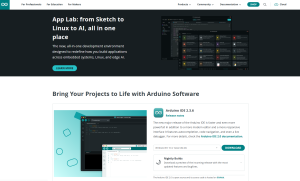
Step 1

   Prerequisites: Ensure you have the latest version of the Arduino IDE installed on your computer.

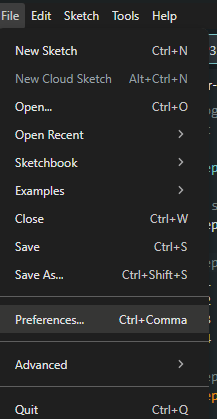
Step 2

   Open the Arduino IDE. Go to File > Preferences.

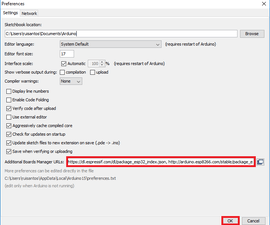
Step 3

   In the “Additional Board Manager URLs” field, paste the following URL:

   https://dl.espressif.com/dl/package_esp32_index.json

   Then, click OK.

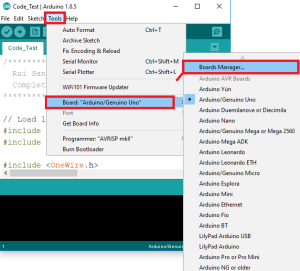
Step 4

   Go to Tools > Board > Boards Manager to open the Board Manager.

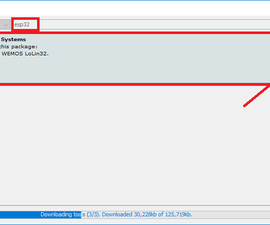
Step 5

   In the search bar, type ESP32. Find ESP32 by Espressif Systems and click the Install button.

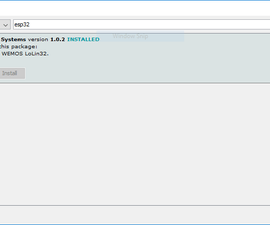
Step 6

   Wait for the installation to complete. Once done, ESP32 boards will appear under Tools > Board.

   Step 7

Step 7

   Most ESP32 boards use a CP2102 USB-to-Serial driver.
   You need to install this driver before uploading code to the ESP32.

     ⬇ Click Here to Download CP2102 Driver (ZIP)


     (Windows driver for ESP32 connection)
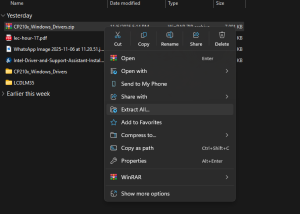
Step 8

   After downloading, go to your Downloads folder.
   Right-click the ZIP file and select Extract All to unzip it.

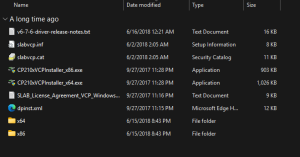
Step 9
Open the extracted folder. Locate the x64 (64-bit) setup file with the extension.exe.

   Step 10

Step 10

   Double-click the .exe file to run the installer.
   Allow all permissions, click Next, accept the agreement, and finish the setup.
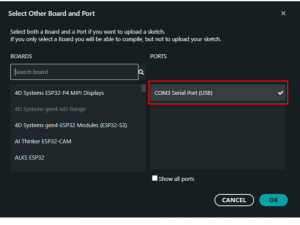
Step 11

   Once installed, connect your ESP32 board.
   You should now see a new COM port listed under Tools > Port in the Arduino IDE.

That’s it! 🎉 You’ve successfully installed the **ESP32 Add-on** and the **CP2102 USB Driver** in your Arduino IDE. Now, you can select your board and upload code with ease.
Circuit & Board Connections
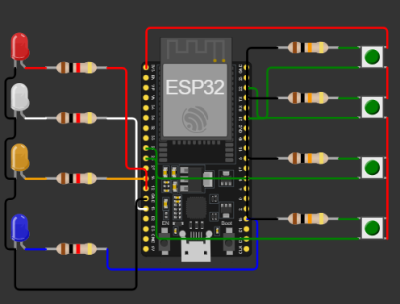
Circuit Diagram

   The complete connection diagram of ESP32-based setup.

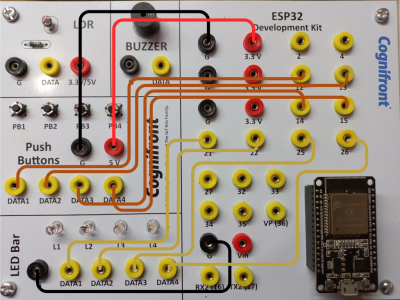
Board Connections

   Actual board wiring layout showing sensor and module connections.

Circuit Connections
| Push Button | ESP32 Pin |
|---|---|
| Push Button 1 | 12 |
| Push Button 2 | 13 |
| Push Button 3 | 14 |
| Push Button 4 | 15 |
| Push Button GND | GND |
| Push Button VCC | 3.3 V / Vin |
| LED Bar | ESP32 Pin |
|---|---|
| LED 1 | 21 |
| LED 2 | 22 |
| LED 3 | 25 |
| LED 4 | 26 |
| LED GND | GND |
- Serial Communication: 9600 baud rate
ESP32 Code
// © 2025, Cognifront. Member of The IoT Kits Family.
// Experiment 1: Introduction to Arduino/ESP32 and Digital I/O Control

// Define push button input pins
int push1Pin = 12;
int push2Pin = 13;
int push3Pin = 14;
int push4Pin = 15;

// Variables to store button states
int push1Value;
int push2Value;
int push3Value;
int push4Value;

// Define LED output pins
int ledPin1 = 21;
int ledPin2 = 22;
int ledPin3 = 25;
int ledPin4 = 26;

void setup() {
  // Start serial communication for debugging
  Serial.begin(9600);

  // Set push button pins as INPUT with internal pull-down or pull-up as needed
  pinMode(push1Pin, INPUT);
  pinMode(push2Pin, INPUT);
  pinMode(push3Pin, INPUT);
  pinMode(push4Pin, INPUT);

  // Set LED pins as OUTPUT
  pinMode(ledPin1, OUTPUT);
  pinMode(ledPin2, OUTPUT);
  pinMode(ledPin3, OUTPUT);
  pinMode(ledPin4, OUTPUT);

  Serial.println("System Initialized: Monitoring Push Buttons and LEDs...");
}

void loop() {
  // Read button states (LOW = pressed when using INPUT_PULLUP)
  push1Value = digitalRead(push1Pin);
  push2Value = digitalRead(push2Pin);
  push3Value = digitalRead(push3Pin);
  push4Value = digitalRead(push4Pin);

  // Control LEDs based on button pressed
  if (push1Value == HIGH) {
    digitalWrite(ledPin1, HIGH);
    digitalWrite(ledPin2, LOW);
    digitalWrite(ledPin3, LOW);
    digitalWrite(ledPin4, LOW);
    Serial.println("Button1 PRESSED → LED1 ON");
  }
  else if (push2Value == HIGH) {
    digitalWrite(ledPin1, LOW);
    digitalWrite(ledPin2, HIGH);
    digitalWrite(ledPin3, LOW);
    digitalWrite(ledPin4, LOW);
    Serial.println("Button2 PRESSED → LED2 ON");
  }
  else if (push3Value == HIGH) {
    digitalWrite(ledPin1, LOW);
    digitalWrite(ledPin2, LOW);
    digitalWrite(ledPin3, HIGH);
    digitalWrite(ledPin4, LOW);
    Serial.println("Button3 PRESSED → LED3 ON");
  }
  else if (push4Value == HIGH) {
    digitalWrite(ledPin1, LOW);
    digitalWrite(ledPin2, LOW);
    digitalWrite(ledPin3, LOW);
    digitalWrite(ledPin4, HIGH);
    Serial.println("Button4 PRESSED → LED4 ON");
  }
  else {
    // If no button is pressed, turn off all LEDs
    digitalWrite(ledPin1, LOW);
    digitalWrite(ledPin2, LOW);
    digitalWrite(ledPin3, LOW);
    digitalWrite(ledPin4, LOW);
    Serial.println("No button pressed → All LEDs OFF");
  }

  // Print raw button states
  Serial.print("Buttons: ");
  Serial.print(push1Value);
  Serial.print(" ");
  Serial.print(push2Value);
  Serial.print(" ");
  Serial.print(push3Value);
  Serial.print(" ");
  Serial.println(push4Value);

  delay(300); // Small delay for readability
}
⬇ Click Here to Download Code File
(Contains ESP32 source code)
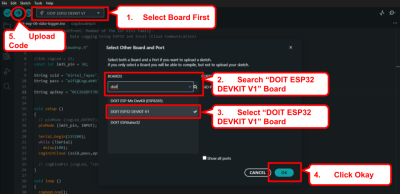
Connect your ESP32 to your computer and upload the code.


Observation
- Pressing any button will turn ON the corresponding LED.
- Only one LED lights up at a time because of the else-if structure.
- Serial Monitor can be used to confirm button press readings.
Conclusion
This experiment demonstrates basic digital input and output control using ESP32.
Real Life Examples
Automated Assembly Line Control: Digital I/O is used to operate actuators, solenoids, and indicator lamps. For example, pressing a start button activates a conveyor motor, demonstrating machine automation control in manufacturing lines.