
Experiment 3: Interfacing Potentiometer for Position Control Simulation with ESP32
Objective
To simulate position control by using a potentiometer as analog input to drive a servo motor.
Task
- Connect potentiometer to ESP32 analog input and servo to PWM output.
- Map the potentiometer values to servo angles.
- Observe servo position change as potentiometer is rotated.
⚠️ Disconnect your ESP32 from the computer while making or removing component connections.
⚠️ Important Note:
1. Connect only the ESP32 (without any component connections) to the computer via USB.
2. Upload the code to the ESP32 .
3. Disconnect the ESP32 from the computer and remove the USB cable.
4. Make all component connections using patch cords as per the circuit diagram.
5. Then connect the 9V adapter to provide external power supply to the component.
Circuit & Board Connections
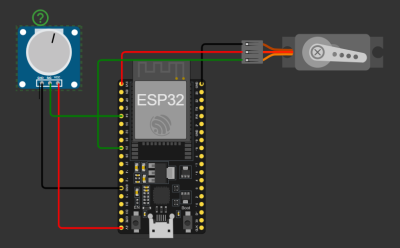
Circuit Diagram

   The complete connection diagram of ESP32-based setup.

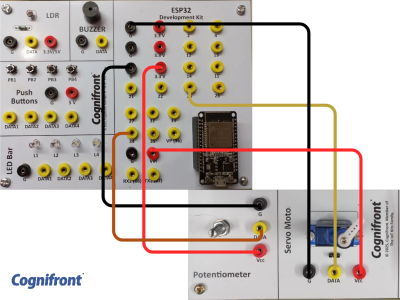
Board Connections

   Actual board wiring layout showing sensor and module connections.

Connections
| Component | ESP32 Pin |
|---|---|
| Servo PWM Pin | 25 |
| Servo VCC | External Power Supply VCC |
| Servo GND | External Power Supply GND |
Potentiometer Connections
| Component | ESP32 Pin |
|---|---|
| Potentiometer OUT | GPIO34 |
| Potentiometer VCC | 3.3V |
| Potentiometer GND | GND |
Important
Before uploading your ESP32 code, make sure you have installed the following libraries in the ESP32 IDE:
1. Wire.h – For I²C communication between ESP32 and peripheral devices.
2. LiquidCrystal_I2C.h – For controlling LCD displays using the I²C interface.
 |
 |
✅ Install via (ZIP Method):
Sketch → Include Library → Add .ZIP Library → Select Downloaded .zip File → Open → Wait for “Library Installed” message
✅ Verify :
Sketch → Include Library → The included library name should be present
3. Servo.h : for Servo motor control
✅ Install via:
Sketch → Include Library → Manage Libraries → Search and Install “Servo” by Michael Margolis, ESP32
✅ Verify :
Sketch → Include Library → The included library name should be present
ESP32 Code
// © 2025, Cognifront. Member of The IoT Kits Family.
// Experiment 3: Interfacing Potentiometer for Position Control Simulation

/*
  🔌 Connections:
  - Potentiometer OUT → GPIO34 (ADC input only)
  - Servo Signal Wire → GPIO25 (PWM-capable pin)
  - Servo VCC → 5V
  - Servo GND → GND (shared with ESP32)
*/

#include <ESP32Servo.h>

const int Pot = 34;      // Analog input from potentiometer
const int servoPin = 25; // PWM output to servo motor

Servo myservo;

void setup() {
  Serial.begin(9600);

  // Attach servo with explicit parameters (pin, min, max microseconds)
  myservo.attach(servoPin, 500, 2400); // Adjust if servo range differs

  Serial.println("✅ System Initialized: Potentiometer → Servo Control (ESP32)");
}

void loop() {
  // Read potentiometer (12-bit ADC: 0–4095)
  int potVal = analogRead(Pot);

  // Map potentiometer range (0–4095) to servo range (0–180 degrees)
  int angle = map(potVal, 0, 4095, 0, 180);

  // Move the servo to the new angle
  myservo.write(angle);

  // Display values on Serial Monitor
  Serial.print("🔘 Potentiometer: ");
  Serial.print(potVal);
  Serial.print("  →  ");
  Serial.print("Servo Angle: ");
  Serial.print(angle);
  Serial.println("°");

  delay(100); // Smooth updates
}
⬇ Click Here to Download Code File
(Contains ESP32 source code)
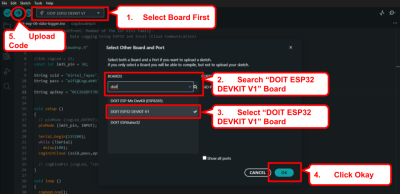
Connect your ESP32 to your computer and upload the code make sure right port selected.

Observation
- As the potentiometer knob is rotated, the servo motor smoothly changes its position.
- The servo angle corresponds proportionally to the potentiometer voltage input (0° to 180° mapped).
Conclusion
- A potentiometer can be used as an analog input device to control the angular position of a servo motor.
- This demonstrates how analog signals can be mapped to control actuators in real-time..
Real Life Example
Robotic Arm Joint Feedback: Potentiometers act as position sensors to measure rotation angles of robotic joints, enabling precise movement control and feedback in automation and mechatronics systems.