
Experiment 6: Data Logging Using ESP32 and Excel (Cloud Communication)
Objective
To log real-time sensor data from an ESP32 connected to an LM35 temperature sensor into an Excel sheet using a cloud server over Wi-Fi communication. The system will enable remote data collection, storage, and visualization through the cloud.
Task
- Write ESP32 code to read temperature data from the LM35 sensor and send it to a cloud server using Wi-Fi.
- Develop a method to export or sync stored data to Excel for analysis and visualization.
- (Optional) Plot real-time or historical temperature data in Excel or a web-based dashboard.
⚠️ Disconnect your ESP32 from the computer while making or removing component connections.
Setting Up Cloud

Step 1
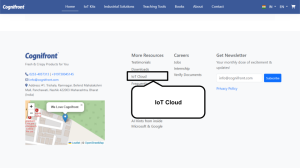
Visit www.cognifront.com and scroll down to the footer section.

Step 2
Click on the IoT Cloud option.

Step 3
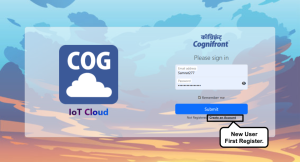
Click on Login or Sign Up / Registration to access your account.

Step 4
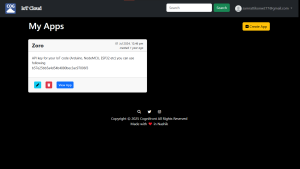
After logging in, navigate to the Dashboard section.

Step 5
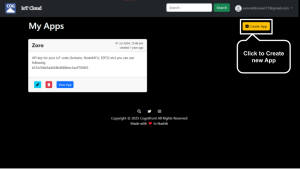
Click on Create New App to start a new cloud application.

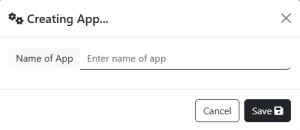
Step 6
Enter your app name — for example, Data Logger.

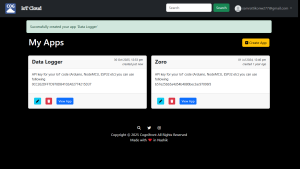
Step 7
Your dashboard will update and display the newly created app.

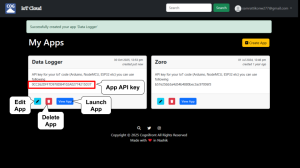
Step 8
Each app shows buttons for Edit, Delete, Launch, and API Key.

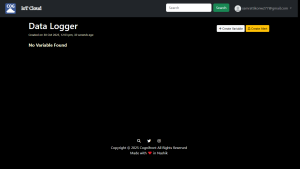
Step 9
Click Edit App to open your app and create variables.

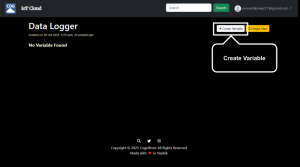
Step 10
Click on Create Variable to define a new data variable.

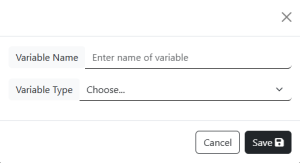
Step 11
Enter a variable name and select its type (defines input/output behavior).

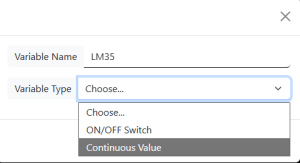
Step 12
For example: Name – LM35, Type – Continuous.

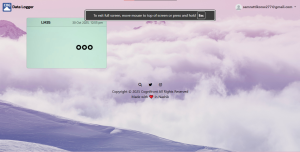
Step 13
Return to the home page and click View App to launch your application.
   Congratulations! Your cloud app is now ready.


Step 14
Open the program folder — you will find two files:
   eecit-exp-06-data-logger.ino (main program) and cogcloudesp.h (library header file).
   Open the .ino file in Arduino IDE.


Step 15
Ensure the cogcloudesp.h header file is included properly in your project.

Step 16
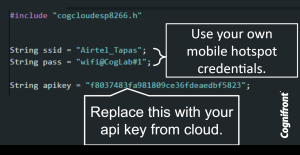
Update your code with your Wi-Fi SSID, password, and API key.
   A stable internet connection is required.

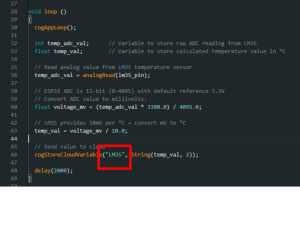
Step 17
Change the variable name in your code to match the one you created in the cloud app.

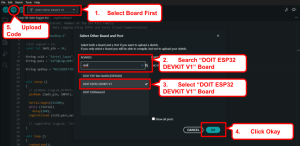
Step 18
Connect your ESP32 to your computer and upload the code.


Step 19
Open or launch your cloud app to visualize real-time sensor data from the LM35.

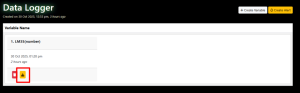
Step 20
In the app settings, click the Download .CSV button to export data.

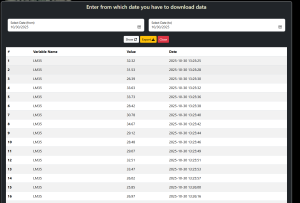
Step 21
Set the desired time range for data export, or leave it blank to download all records.

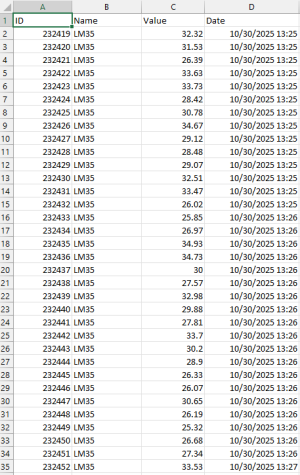
Step 22
Open the downloaded .CSV file in Microsoft Excel to view the logged data.

Circuit & Board Connections
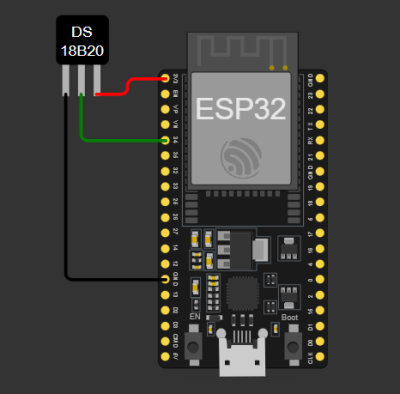
Circuit Diagram

   The complete connection diagram of ESP32-based setup.

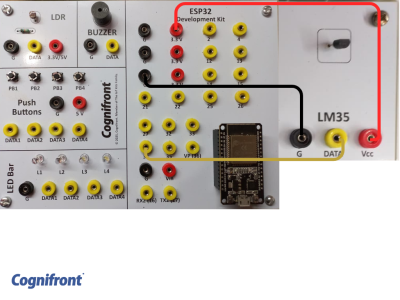
Board Connections

   Actual board wiring layout showing sensor and module connections.

Connections
| LM35 Pins | ESP32 Pins |
|---|---|
| GND | GND |
| VCC (3.3V) | 3.3V |
| DATA | GPIO34 |
ESP32 Code
// © 2026, Cognifront. Member of The IoT Kits Family.
//Experiment 6: Data Logging Using ESP32 and Excel (Cloud Communication)

#include "cogcloudesp.h"

//int cogLed = 15;
const int lm35_pin = 34;

String ssid = "********"; // wifi/hotspot name
String pass = "********"; // wifi/hotspot password 2.4 hz band only

String apikey = "YOUR_API_KEY_HERE"; // API key from app. Keep the "" (quotes)

void setup ()
{
  // pinMode (cogLed,OUTPUT);
  pinMode (lm35_pin, INPUT);

  Serial.begin(115200);
  while (!Serial)
    delay(100);
  cogInitCloud (ssid,pass,apikey);

  // cogBindPin (cogLed, "LED");
}

void loop ()
{
  cogAppLoop();

  int voltage_mv = analogReadMilliVolts(lm35_pin);
  float temp_val = voltage_mv / 10.0;  // LM35 = 10 mV per °C

  // Send value to cloud
  cogStoreCloudVariable("LM35", String(temp_val, 2));

  delay(2000);
}
⬇ Click Here to Download Code File
(Contains ESP32 source code)
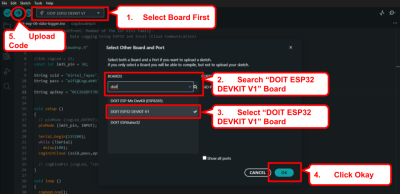
Connect your ESP32 to your computer and upload the code make sure right port selected.
Observation
- The ESP32 successfully reads temperature data from the LM35 sensor.
- Data is stored in a CSV file on the cloud at two-second intervals.
- Using PLX-DAQ or Python, data can be visualized in real time in Excel.
Conclusion
This experiment demonstrates how to log real-time sensor data from ESP32 to a computer using cloud communication. Storing data in CSV format enables easy analysis and plotting in Excel or any other data-processing tool.
Real Life Example
Condition Monitoring in Machines and Data Logging: Sensors collect data such as vibration, temperature, or pressure from mechanical systems, which is logged and analysed in Excel for predictive maintenance and fault diagnosis. Also this data can be fed for training a machine learning model.