
IPDL - 7: LED Control Using ESP8266 and Blynk App
IPDL - 7: LED Control Using ESP8266 and Blynk App
Objective
To control an LED connected to an ESP8266 NodeMCU using the Blynk IoT app through a Wi-Fi network.
Required Components
- Cognifront NodeMCU ESP8266 kit
- Jumper wires
- USB cable
Required Libraries
- ESP8266Wifi
- Blynk (installation steps below)
Circuit Diagram
Board Connections
Pin Connections
| Component | Connection |
|---|---|
| LED Anode (+) | NodeMCU D0 (GPIO5) through 220 Ω resistor |
| LED Cathode (-) | NodeMCU GND |
Blynk Setup
Follow the steps below to create the Blynk project and connect the ESP8266 to the Blynk app.
Step 1: Create a Blynk Account
- Open Blynk (https://blynk.io/) on a computer.
- Create a Blynk account or log in using an existing account.
- You will be redirected to Dashboard

Step 2: Create a Template
A Template contains the configuration that defines how the ESP8266 communicates with Blynk.
- In Blynk Dashboard, click the home (🏠) button.
- Click Create a New Template.
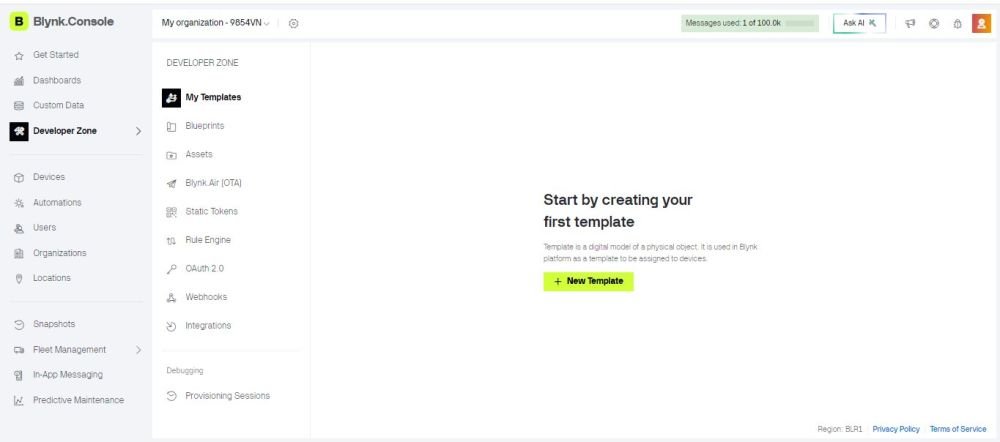
Create Template screen 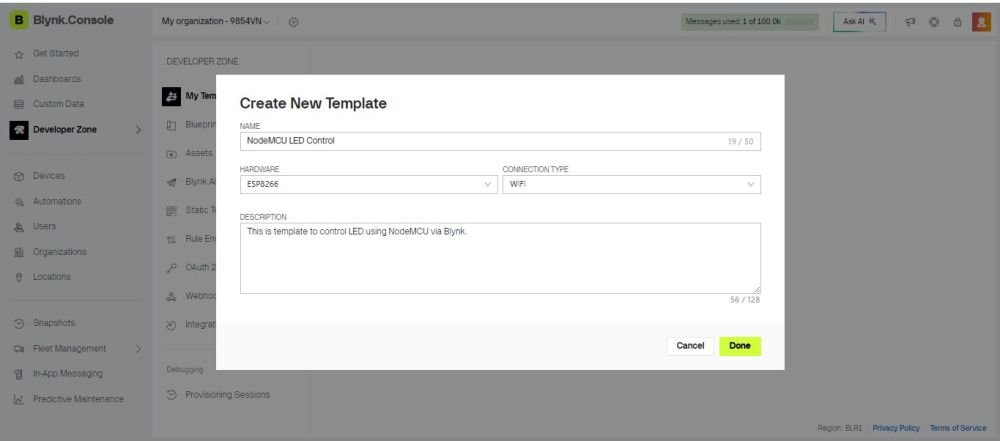
Details of Template screen - Enter the following details:


| Setting | Value |
|---|---|
| Template Name | NodeMCU LED Control |
| Hardware | ESP8266 |
| Connectivity | WiFi |
| Description | Your choice |
Click Create to create the template.

Step 3: Create a Virtual Pin Datastream
A Datastream is the communication channel through which data is exchanged between the ESP8266 and Blynk Cloud.
For this experiment, the Blynk button will send either 0 or 1 to the ESP8266 through Virtual Pin V0.
- Open the Datastreams section of the ESP8266 LED Control template.
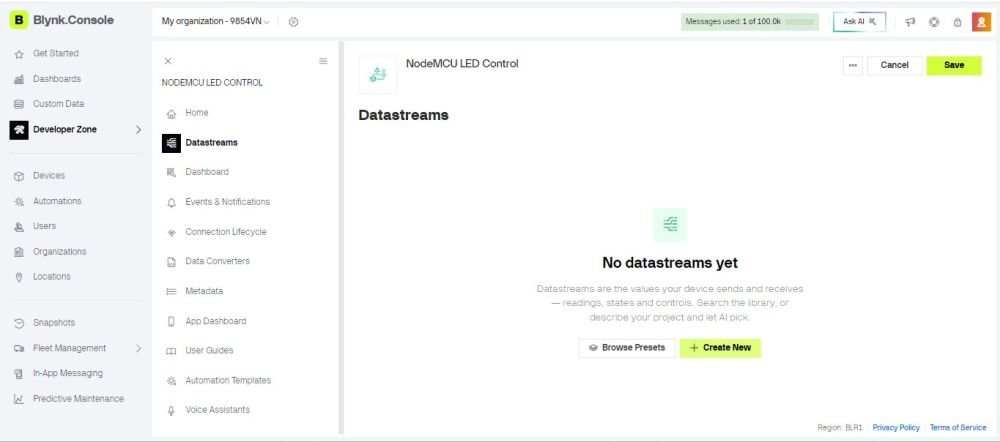
Datastreams screen - Click Add Datastream.
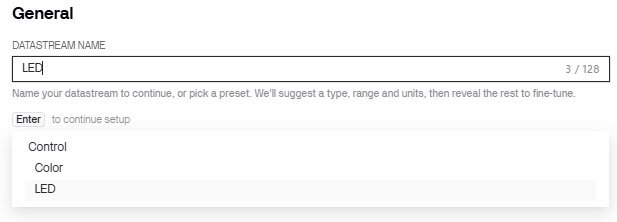
To Create Datastreams, search "LED" 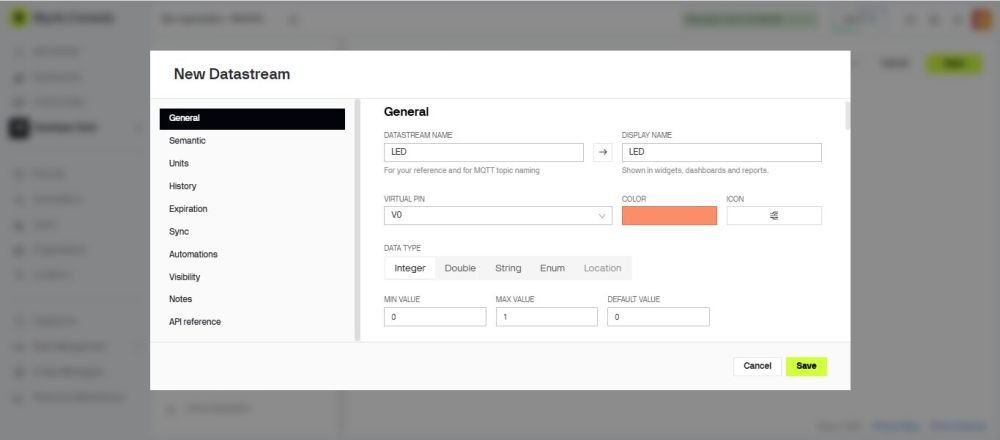
Datastreams all details - Enter the following settings:


| Setting | Value |
|---|---|
| Datastream Name | LED |
| Display Name | LED |
| Virtual Pin | V0 |
| Data Type | Integer |
| Minimum | 0 |
| Maximum | 1 |
| Default Value | 0 |
Click Create.

The datastream now represents the following:
- 0 = LED OFF
- 1 = LED ON
Blynk's Virtual Pins are software channels and should not be confused with physical GPIO pins on the ESP8266.

Step 4: Create the Blynk Device
The Device represents the actual NodeMCU ESP8266 board that will connect to Blynk Cloud.
- Open Devices in Blynk Console.
- Click + Add New Device.
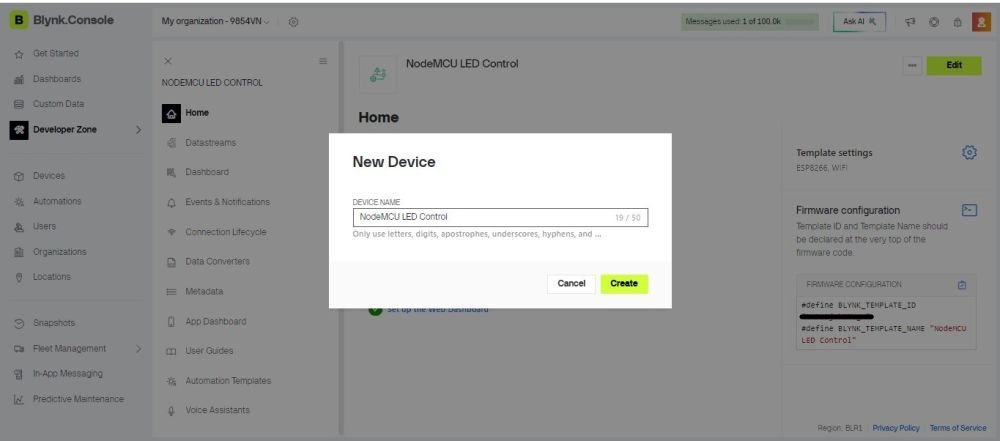
New Device name - Give the device a name, for example:

ESP8266 LED Control
Create the device.
The device will now be associated with the template.

- Important! Click Copy to Clipboard to copy the tokens
Blynk uses an individual authentication token for each device. This token allows the ESP8266 to identify and authenticate itself with Blynk Cloud.
Step 5: Get the Device Credentials (if you missed the pop-up)
If you missed to copy the tokens from the pop-up, don't worry. Follow the steps below.
- Open the Home of your template.
- On the right, you will find:
#define BLYNK_TEMPLATE_ID "YOUR_BLYNK_TEMPLATE_ID"
#define BLYNK_TEMPLATE_NAME "YOUR_BLYNK_TEMPLATE_NAME" - Copy both. Paste them in a Notepad.
- Open the newly created device and find its device information.
- Below its name, you will find: Auth Token
- Click it, it will be copied. Paste it in the same Notepad.
These values are used in the Arduino program.
They will be placed in the code like this:
#define BLYNK_TEMPLATE_ID "YOUR_TEMPLATE_ID"
#define BLYNK_TEMPLATE_NAME "YOUR_BLYNK_TEMPLATE_NAME"
#define BLYNK_AUTH_TOKEN "YOUR_AUTH_TOKEN"
Keep this copied on a Notepad or any place you remember.
Do not share your Auth Token publicly.
Step 6: Dashboard configuration
- Open your device.
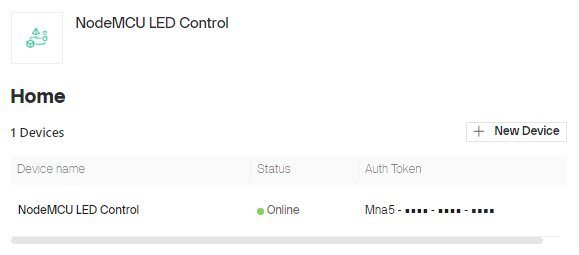
Click on your New Device's name to open its dashboard. - Open the Dashboard of your device.
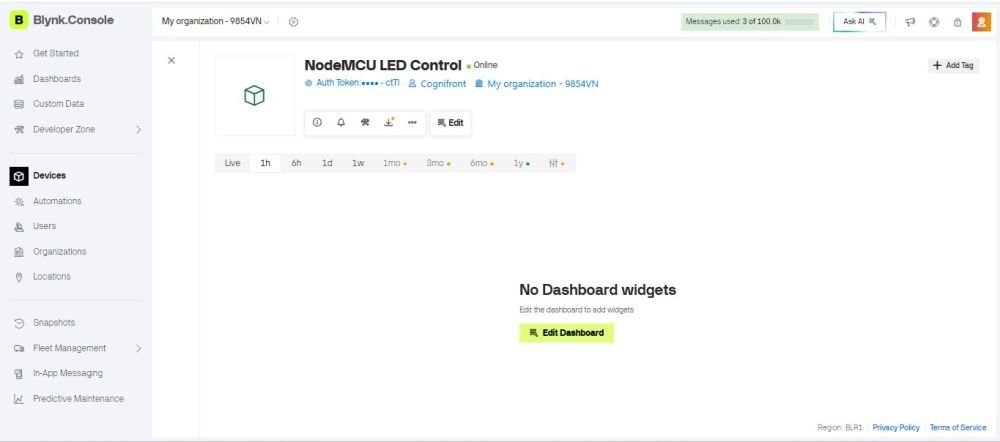
Your Device's screen. Click on the "Edit Dashboard" button. 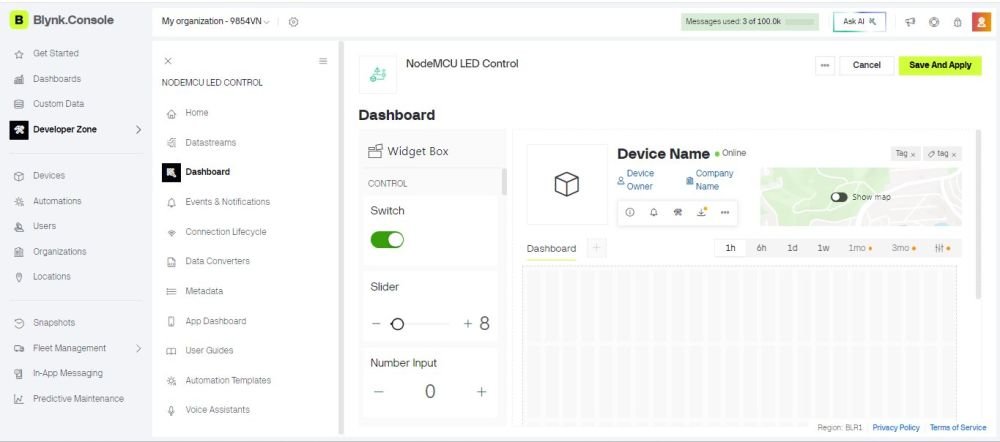
Your New Device's dashboard screen - From the Widget Box, drag and drop a Switch into your Dashboard space on the right.
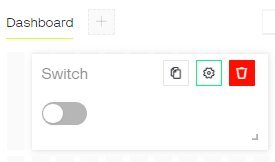
This is the switch control widget - Click on the Settings icon of the Switch.
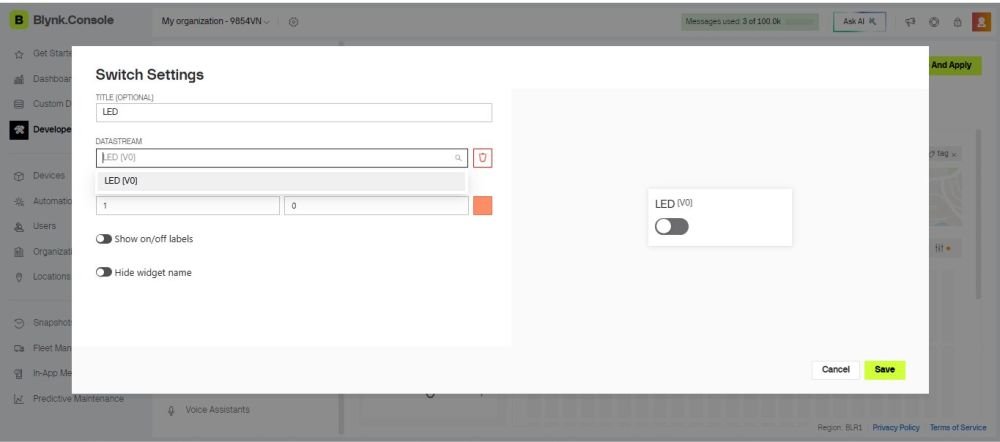
Settings of the switch - Set the name as LED, or as per your choice.
- Select the Datastream as V0, what we just created.
- Set the rest of the settings according to your choice.
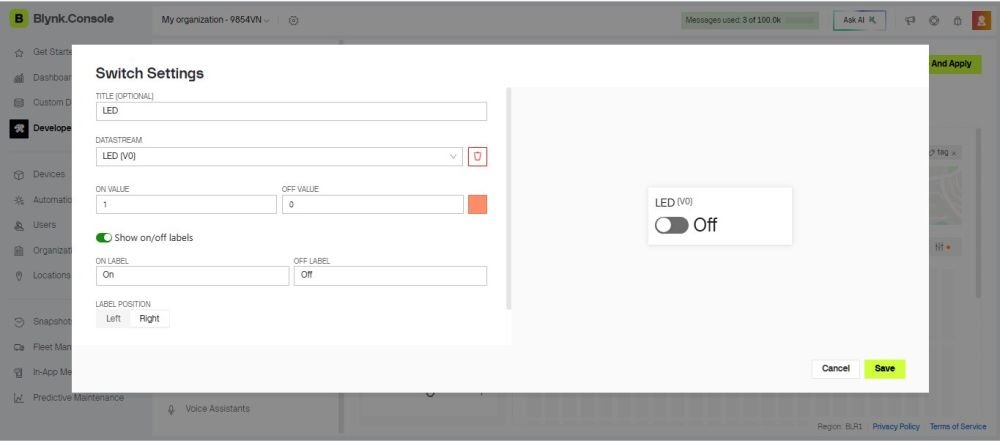
My final settings for the switch - Click Save.
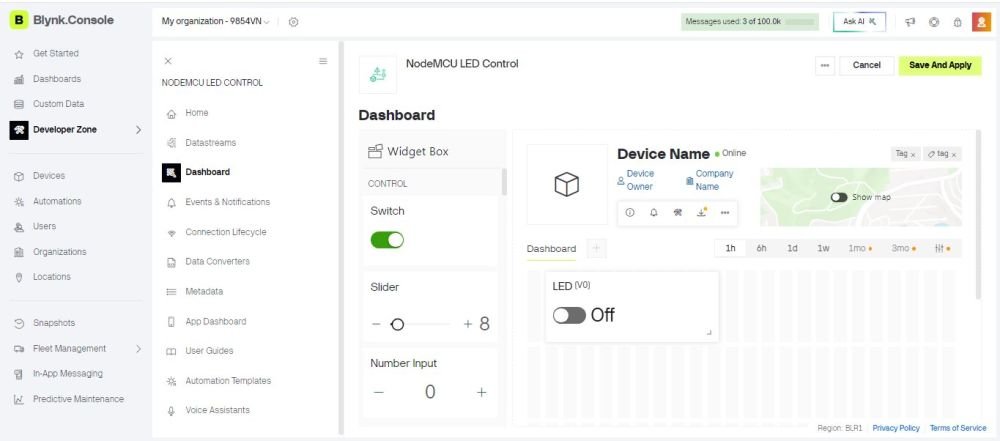
Your switch should look like this on the dashboard. Click "Save and Apply" button on the dashboard. - Click Save and Apply on the Dashboard.


Step 7: Install the Required Arduino Libraries
Open Arduino IDE on the computer connected to the ESP8266.
The ESP8266 board package must be installed in Arduino IDE.
Install Blynk Library: Open:
Sketch → Include Library → Manage Libraries
Search for and install:
Blynk

Click Install.
- Important: If the screen asks you for installing dependencies, click install all.
Now Select the board:
Tools → Board → ESP8266 Boards → NodeMCU 1.0 (ESP-12E Module)
Now we are ready to write the code and upload it to the NodeMCU.
Arduino IDE Code
// © 2026, Cognifront. Member of The IoT Kits Family.

// Experiment: LED Control Using ESP8266 and Blynk
//Include the library files
#define BLYNK_PRINT Serial
#define BLYNK_TEMPLATE_ID "YOUR_BLYNK_TEMPLATE_ID"
#define BLYNK_TEMPLATE_NAME "YOUR_BLYNK_TEMPLATE_NAME"
#define BLYNK_AUTH_TOKEN "YOUR_BLYNK_AUTH_TOKEN " //Enter your blynk auth token
// make sure to KEEP the "" in template_id, name and auth_token above

#include <ESP8266WiFi.h>
#include <BlynkSimpleEsp8266.h>

char auth[] = BLYNK_AUTH_TOKEN;
char ssid[] = "********";//Enter your WIFI name
char pass[] = "********";//Enter your WIFI password

//Get the button value
BLYNK_WRITE(V0) {
  digitalWrite(D0, param.asInt());
}

void setup() {
  //Set the LED pin as an output pin
  pinMode(D0, OUTPUT);
  //Initialize the Blynk library
  Blynk.begin(auth, ssid, pass, "blynk.cloud", 80);
}

void loop() {
  //Run the Blynk library
  Blynk.run();
}
Step 8: Enter Wi-Fi Details
In the Arduino code, replace:
char ssid[] = "YOUR_WIFI_NAME";
char pass[] = "YOUR_WIFI_PASSWORD";
You can use your mobile hotspot here instead of WiFi.
Make sure you follow upper and lower case for wifi/mobile hotspot name, as it is case sensitive.
ESP8266 will connect to this Wi-Fi network/hotspot.
Important: The ESP8266 must have Internet access because it communicates with Blynk Cloud over the network.
Step 9: Enter Blynk Credentials
Replace the following lines with the credentials obtained from Blynk:
#define BLYNK_TEMPLATE_ID "YOUR_TEMPLATE_ID"
#define BLYNK_TEMPLATE_NAME "YOUR_TEMPLATE_NAME"
#define BLYNK_AUTH_TOKEN "YOUR_AUTH_TOKEN"
Do not change the following line:
BLYNK_WRITE(V0)
The V0 must match the Virtual Pin selected for the LED Control datastream.
Step 10: Upload the Program
- Connect the NodeMCU ESP8266 to the computer using a USB cable.
- Select the correct ESP8266 board [NodeMCU 1.0 (ESP-12E Module)] from Tools → Board.
- Select the correct COM port from Tools → Port.
- Click Upload.
- Wait for the upload to complete.
After successful connection, the device should appear as Online in Blynk.
Step 11: Test the LED
Open your Blynk Dashboard from template.
- Turn the LED Switch ON.
- Blynk sends 1 through Virtual Pin V0.
- The ESP8266 receives the value through `BLYNK_WRITE(V0)`.
- The ESP8266 sets D1/GPIO5 HIGH.
- The LED turns ON.
When the switch is turned OFF:
- Blynk sends 0 through Virtual Pin V0.
- The ESP8266 receives the value.
- The ESP8266 sets D1/GPIO5 LOW.
- The LED turns OFF.


The complete communication path is:
LED Control Switch
        ↓
 Blynk Dashboard
        ↓
  Virtual Pin V0
        ↓
   Blynk Cloud
        ↓
     ESP8266
        ↓
    D1 / GPIO5
        ↓
       LED
Understanding V0 and D1
There are two different pins used in this experiment:
| Pin | Meaning | Purpose |
|---|---|---|
| V0 | Blynk Virtual Pin | Receives the ON/OFF command from the Blynk app |
| D1 / GPIO5 | Physical ESP8266 GPIO | Actually controls the LED |
V0 does not mean GPIO0.
V0 exists inside the Blynk communication system, while D1/GPIO5 is an actual electrical pin on the ESP8266.
The Arduino code connects the two by using:
BLYNK_WRITE(V0) {
  int value = param.asInt();

  if (value == 1) {
    digitalWrite(ledPin, HIGH);
  }
  else {
    digitalWrite(ledPin, LOW);
  }
}
This means that whenever Blynk sends a new value through V0, the ESP8266 uses that value to control the physical LED.
Working Principle
The ESP8266 connects to the Internet through a Wi-Fi network and communicates with the Blynk cloud platform.
When the button in the Blynk app is pressed, the app sends a value to virtual pin V0. The ESP8266 receives this value using the BLYNK_WRITE(V0) function.
If the received value is 1, GPIO5 is set HIGH and the LED turns ON.
If the received value is 0, GPIO5 is set LOW and the LED turns OFF.
Note: The Blynk virtual pin V0 is a software communication channel. It is not the same as the physical ESP8266 GPIO pin.
Observation
- The ESP8266 connects to the configured Wi-Fi network.
- The Blynk app button controls the LED remotely.
- When the button is ON, the LED turns ON.
- When the button is OFF, the LED turns OFF.
- The LED can be controlled from the smartphone as long as the ESP8266 and Blynk service have network connectivity.
Result
The LED was successfully controlled remotely using the ESP8266 NodeMCU and Blynk IoT app.
Conclusion
This experiment demonstrates basic cloud-based IoT control using an ESP8266. The Blynk platform provides a simple interface for sending commands from a smartphone to the ESP8266, which then controls a physical LED through GPIO5.